
(ເລີກໃຊ້ແລ້ວ) ຕັດຂອບ ແລະ ໝູນ (crop and rotate)
ຂໍ້ມູນທາງເຕັກນິກ
- ລາຍລະອຽດ
- ປ່ຽນການຈັດເຟຣມ ແລະ ແກ້ໄຂທັດສະນີຍະພາບ (perspective).
- ຈຸດປະສົງ
- ເພື່ອການປັບແກ້ ຫຼື ເພື່ອການສ້າງສັນ.
- ຂໍ້ມູນເຂົ້າ
- linear, RGB, scene-referred.
- ການປະມວນຜົນ
- ທາງເລຂາຄະນິດ (geometric), RGB.
- ຂໍ້ມູນອອກ
- linear, RGB, scene-referred.
ກະລຸນາຮັບຊາບວ່າ ໂມດູນນີ້ ເລີກໃຊ້ແລ້ວ ຕັ້ງແຕ່ darktable 3.8 ແລະ ບໍ່ຄວນໃຊ້ສຳລັບການແກ້ໄຂໃໝ່ອີກ. ກະລຸນາໃຊ້ໂມດູນ crop ເພື່ອຕັດຂອບຮູບ, ໂມດູນ rotate and perspective ເພື່ອໝູນຮູບ ແລະ ແກ້ໄຂທັດສະນີຍະພາບ, ແລະ ໂມດູນ orientation ເພື່ອປີ້ນຮູບໃນແນວນອນ/ແນວຕັ້ງ.
ຕັດຂອບ, ໝູນ ແລະ ແກ້ໄຂຄວາມບິດບ້ຽວຂອງທັດສະນີຍະພາບ ໂດຍໃຊ້ເສັ້ນຄຳແນະນຳເທິງໜ້າຈໍ.
ເມື່ອມີການໃຊ້ງານໂມດູນນີ້, ຮູບພາບເຕັມທີ່ຍັງບໍ່ໄດ້ຕັດຂອບຈະສະແດງອອກມາ, ພ້ອມກັບປຸ່ມປັບການຕັດຂອບ ແລະ ເເສັ້ນຄຳແນະນຳ.
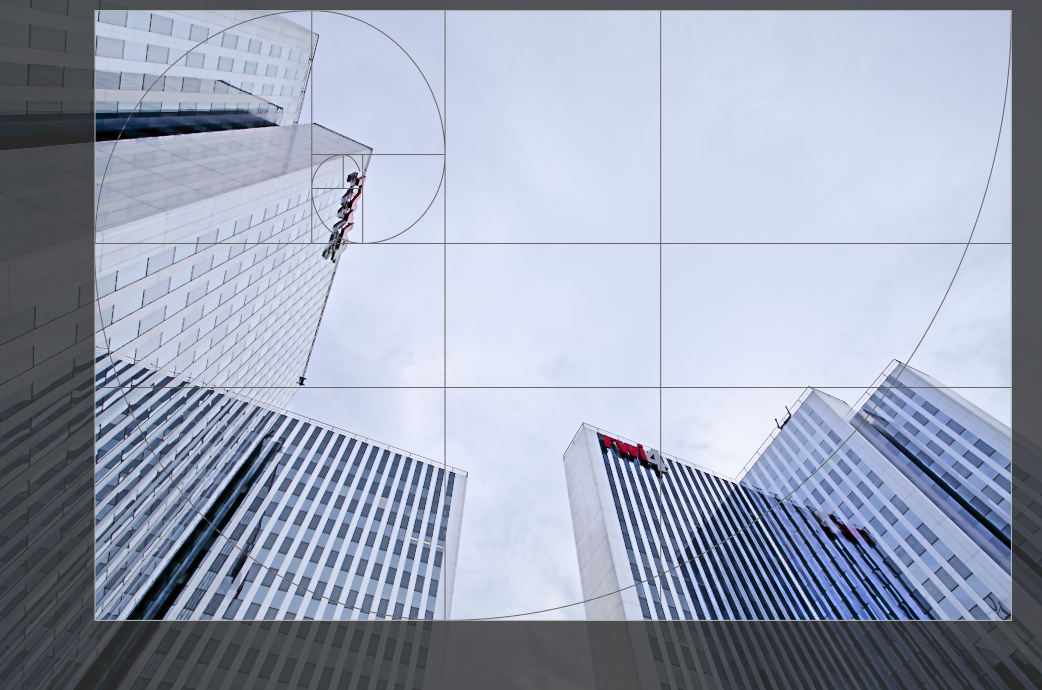
ປັບຂະໜາດການຕັດຂອບໂດຍການລາກທີ່ຂອບ ຫຼື ມຸມ.
ຍ້າຍກອບສີ່ຫຼ່ຽມການຕັດຂອບໂດຍການຄລິກ ແລະ ລາກພາຍໃນພື້ນທີ່ຕັດຂອບ. ບັງຄັບການຍ້າຍໃຫ້ຢູ່ໃນແນວນອນ/ແນວຕັ້ງ ໂດຍການກົດ Ctrl/Shift ຄ້າງໄວ້ໃນຂະນະທີ່ລາກ. ຢືນຢັນການປ່ຽນແປງໂດຍການໄປໃຊ້ງານໂມດູນອື່ນ.
ຖ້າທ່ານຕ້ອງການໃຊ້ໂມດູນ retouch, ແນະນຳໃຫ້ໃຊ້ rotate and perspective ສຳລັບການໝູນ ແລະ/ຫຼື ແກ້ໄຂທັດສະນີຍະພາບເທົ່ານັ້ນ, ແລະ ໄປຕັດຂອບໃນໂມດູນ crop ແທນ. ຂະບວນການນີ້ຈະຊ່ວຍໃຫ້ຮູບພາບທັງໝົດຍັງຄົງມີໃຫ້ເລືອກເປັນຈຸດຕົ້ນທາງໃນ retouch, ເພາະໂມດູນ crop ຢູ່ຫຼັງຈາກ retouch ໃນທໍ່ປະມວນຜົນ.
ໝາຍເຫດ: ເຄື່ອງມືບາງຢ່າງໃນໂມດູນນີ້ (ການປັບມຸມ ແລະ ການແກ້ໄຂຄວາມບິດບ້ຽວຂອງທັດສະນີຍະພາບ) ຕ້ອງການການແຊກຂໍ້ມູນ (interpolated) ຂອງຮູບພາບເດີມ. ເພື່ອຜົນລັບຄວາມຄົມຊັດທີ່ດີທີ່ສຸດ ໃຫ້ຕັ້ງ “lanczos3” ເປັນຕົວແຊກຂໍ້ມູນພິກເຊວ (pixel interpolator) ໃນ ການຕັ້ງຄ່າ > ການປະມວນຜົນ.
🔗ສ່ວນຄວບຄຸມໂມດູນ
ການຄວບຄຸມໃນໂມດູນ ຕັດຂອບ ແລະ ໝູນ ຈະແຍກອອກເປັນສອງແຖບ ດັ່ງນີ້:
🔗ແຖບຫຼັກ
- ປີ້ນ (flip)
- ປີ້ນຮູບໃນແນວນອນ, ແນວຕັ້ງ ຫຼື ທັງສອງແກນ.
- ມຸມ (angle)
- ແກ້ໄຂມຸມໝູນເພື່ອໃຫ້ຮູບພາບໄດ້ລະດັບ ໂດຍການຕັ້ງຄ່າຕົວເລກເປັນອົງສາ ຫຼື ໃຊ້ເມົາສ໌. ໃນການໃຊ້ເມົາສ໌, ໃຫ້ຄລິກຂວາ ແລະ ລາກເພື່ອຂີດເສັ້ນຕາມແນວນອນ ຫຼື ແນວຕັ້ງທີ່ເໝາະສົມໃນຮູບ. ເມື່ອທ່ານປ່ອຍປຸ່ມເມົາສ໌ ຮູບພາບຈະຖືກໝູນເພື່ອໃຫ້ເສັ້ນທີ່ທ່ານຂີດນັ້ນກົງກັບແກນນອນ ຫຼື ແກນຕັ້ງ.
- ແກ້ໄຂທັດສະນີຍະພາບ (keystone)
- ແກ້ໄຂຄວາມບິດບ້ຽວຂອງທັດສະນີຍະພາບ. ເຄື່ອງມືນີ້ມີປະໂຫຍດ ເຊັ່ນ ເມື່ອທ່ານຖ່າຍຮູບຕຶກສູງຈາກພື້ນດິນດ້ວຍເລນໄລຍະສັ້ນ ໂດຍການແຫງນກ້ອງຂຶ້ນ. ຊ່ອງເລືອກຊ່ວຍໃຫ້ທ່ານເລືອກປະເພດການແກ້ໄຂທີ່ຕ້ອງການ:
- ແນວຕັ້ງ (vertical): ຈຳກັດການແກ້ໄຂສະເພາະເສັ້ນແນວຕັ້ງ
- ແນວນອນ (horizontal): ຈຳກັດການແກ້ໄຂສະເພາະເສັ້ນແນວນອນ
- ທັງໝົດ (full): ແກ້ໄຂທັງເສັ້ນແນວນອນ ແລະ ແນວຕັ້ງພ້ອມກັນ
-
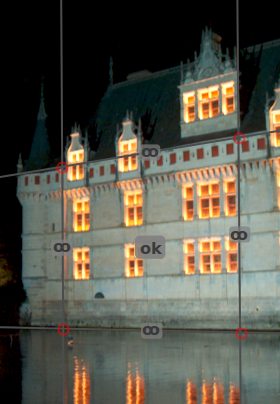
ອີງຕາມປະເພດການປັບແກ້ທີ່ເລືອກ ທ່ານຈະເຫັນເສັ້ນປັບແກ້ຊື່ສອງ ຫຼື ສີ່ເສັ້ນວາງຊ້ອນເທິງຮູບຂອງທ່ານ. ວົງມົນສີແດງສອງວົງໃນແຕ່ລະເສັ້ນຊ່ວຍໃຫ້ທ່ານປ່ຽນຕຳແໜ່ງເສັ້ນດ້ວຍເມົາສ໌ຂອງທ່ານ. ນອກຈາກນັ້ນ, ແຕ່ລະເສັ້ນຍັງມີປຸ່ມ “ສົມມາດ (symmetry)”. ຖ້າເປີດໃຊ້ (ແລະ ເປັນສີແດງ) ທຸກການເຄື່ອນໄຫວຂອງເສັ້ນນັ້ນຈະຖືກສະທ້ອນໂດຍເສັ້ນທີ່ຢູ່ກົງກັນຂ້າມ.
-
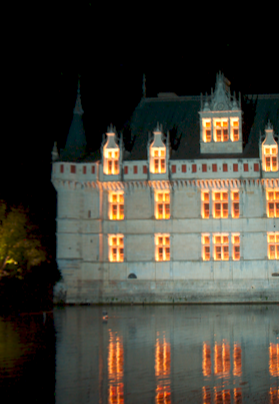
ເພື່ອປັບແກ້ຄວາມຜິດພ້ຽນຂອງເພີສະເປັກທິບ, ທ່ານຕ້ອງຊອກຫາຈຸດເດັ່ນຕາມແນວນອນ ແລະ/ຫຼື ແນວຕັ້ງທີ່ເໝາະສົມໃນຮູບຂອງທ່ານ ແລ້ວວາງເສັ້ນປັບແກ້ໃຫ້ກົງກັບພວກມັນ. ເມື່ອສຳເລັດແລ້ວ, ໃຫ້ກົດປຸ່ມ “OK” ທີ່ຢູ່ໃກ້ກັບກາງຮູບ – ການປັບແກ້ຈະຖືກນຳໃຊ້ທັນທີ. ທ່ານສາມາດກັບມາທີ່ໂມດູນ ແລະ ປັບແຕ່ງການແກ້ໄຂຂອງທ່ານຕື່ມໂດຍການເລືອກ “correction applied” ໃນຊ່ອງ keystone.
- ການຕັດຂອບອັດຕະໂນມັດ (automatic cropping)
- ຕັດຂອບຮູບໂດຍອັດຕະໂນມັດເພື່ອຫຼີກລ່ຽງຂອບສີດຳທີ່ເກີດຂຶ້ນຢູ່ແຄມຮູບ. ສິ່ງນີ້ມີປະໂຫຍດຫຼາຍໃນເວລາໝູນຮູບ.
- ອັດຕາສ່ວນ (aspect)
- ກຳນົດອັດຕາສ່ວນຂອງການຕັດຂອບ, ໂດຍບັງຄັບອັດຕາສ່ວນ ກວ້າງ:ສູງ ຂອງກອບສີ່ຫຼ່ຽມໃຫ້ເປັນໄປຕາມທີ່ເລືອກ. ມີອັດຕາສ່ວນຕົວເລກທົ່ວໄປທີ່ກຳນົດໄວ້ແລ້ວຫຼາຍຢ່າງ. ອັດຕາສ່ວນພິເສດບາງຢ່າງມີດັ່ງນີ້:
- ຕາມໃຈ (freehand): ຕັດຂອບໂດຍບໍ່ມີຂໍ້ຈຳກັດໃດໆ
- ຮູບຕົ້ນສະບັບ (original image): ຮັກສາອັດຕາສ່ວນຂອງຮູບເດີມໄວ້
- ສີ່ຫຼ່ຽມຈັດຕຸລັດ (square): ບັງຄັບອັດຕາສ່ວນໃຫ້ເປັນ 1:1
- ສັດສ່ວນຄຳ (golden cut): ອັດຕາສ່ວນຄຳ (1.62:1)
- :ທ່ານຍັງສາມາດປ້ອນອັດຕາສ່ວນອື່ນໆ ຫຼັງຈາກເປີດຊ່ອງຕົວເລືອກ (combobox) ໂດຍການພິມໃນຮູບແບບ “x:y” ຫຼື ເປັນທົດສະນິຍົມ (ຕົວຢ່າງ: “0.5” ເພື່ອໃຊ້ໃນອັດຕາສ່ວນ 2:1).
-
ຖ້າເຈົ້າຕ້ອງການເພີ່ມອັດຕາສ່ວນພາບ (aspect ratio) ເຂົ້າໃນລາຍການເລືອກທີ່ມີຢູ່ແລ້ວ, ເຈົ້າສາມາດເຮັດໄດ້ໂດຍການເພີ່ມແຖວໃນຮູບແບບ “
plugins/darkroom/clipping/extra_aspect_ratios/foo=x:y” ໃນໄຟລ໌ກຳນົດຄ່າdarktablercໃນ ໂຟນເດີກຳນົດຄ່າ. ໃນທີ່ນີ້ “foo” ແມ່ນຊື່ຂອງອັດຕາສ່ວນພາບໃໝ່ ແລະ “x” ກັບ “y” ແມ່ນຄ່າຕົວເລກທີ່ກ່ຽວຂ້ອງ (xແລະyຕ້ອງເປັນເລກຖ້ວນ). ໝາຍເຫດວ່າເຈົ້າສາມາດເພີ່ມລາຍການໃໝ່ສຳລັບອັດຕາສ່ວນທີ່ຍັງບໍ່ມີໃນລາຍການເລືອກເທົ່ານັ້ນ. -
ສຸດທ້າຍ, ປຸ່ມຂ້າງຊ່ອງເລືອກອັດຕາສ່ວນ ຊ່ວຍໃຫ້ທ່ານສະຫຼັບລະຫວ່າງແນວຕັ້ງ ແລະ ແນວນອນ ຖ້າທ່ານເລືອກອັດຕາສ່ວນແບບສີ່ຫຼ່ຽມຜືນຜ້າ.
ໝາຍເຫດ: ໃນຂະນະທີ່ປັບຂະໜາດຮູບໃນໂໝດຕາມໃຈ (freehand), ທ່ານສາມາດຮັກສາອັດຕາສ່ວນທີ່ຕັ້ງໄວ້ປັດຈຸບັນ ໂດຍການກົດ Shift ຄ້າງໄວ້ໃນຂະນະທີ່ລາກປຸ່ມປັບຂະໜາດໃດໜຶ່ງ.
- ສະແດງເສັ້ນຄຳແນະນຳ (show guides)
- ໝາຍຕິກໃສ່ຊ່ອງເພື່ອສະແດງເສັ້ນຄຳແນະນຳເມື່ອມີການໃຊ້ງານໂມດູນ. ຄລິກທີ່ໄອຄອນເບື້ອງຂວາເພື່ອຄວບຄຸມຄຸນສົມບັດຂອງເສັ້ນຄຳແນະນຳ. ເບິ່ງ ເສັ້ນຄຳແນະນຳ ແລະ ສິ່ງວາງທັບ ສຳລັບລາຍລະອຽດ.
🔗ແຖບຂອບ (margins)
ໂຕເລື່ອນເຫຼົ່ານີ້ຊ່ວຍໃຫ້ທ່ານກຳນົດໄດ້ໂດຍກົງວ່າຈະຕັດຂອບຮູບອອກເທົ່າໃດໃນແຕ່ລະດ້ານ. ພວກມັນຈະຖືກປັບປຸງໂດຍອັດຕະໂນມັດ ຖ້າທ່ານຍ້າຍ ຫຼື ປັບຂະໜາດພື້ນທີ່ຕັດຂອບໃນຮູບໂດຍໃຊ້ເມົາສ໌.
- ຊ້າຍ (left)
- ເປີເຊັນຂອງຮູບທີ່ຈະຖືກຕັດອອກຈາກເບື້ອງຊ້າຍ.
- ຂວາ (right)
- ເປີເຊັນຂອງຮູບທີ່ຈະຖືກຕັດອອກຈາກເບື້ອງຂວາ.
- ເທິງ (top)
- ເປີເຊັນຂອງຮູບທີ່ຈະຖືກຕັດອອກຈາກດ້ານເທິງ.
- ລຸ່ມ (bottom)
- ເປີເຊັນຂອງຮູບທີ່ຈະຖືກຕັດອອກຈາກດ້ານລຸ່ມ.
translations
- Dutch: (deprecated) crop and rotate
- English: (deprecated) crop and rotate
- Español: (deprecated) crop and rotate
- Français: (déprécié) Crop and rotate
- German: (veraltet) beschneiden und drehen
- Polish: (deprecated) crop and rotate
- Português: (deprecated) crop and rotate
- Ukrainian: (застарілий) Трансформації