group layout presets
Table of Contents
A group layout preset is a ready-made arrangement of groups and operators, without any elements in it. Presets set up common masks in one click, and the built-in ones come with notes explaining how to use them. You can also save the layout of any group as a preset of your own, and use it in any module.
#applying a preset
Select a group (or the whole mask) and click the
 presets button in the selection caption of the mask panel. The popover lists the built-in presets followed by your user defined presets. Hover over a preset’s name to see an outline of its groups, operators and opacities.
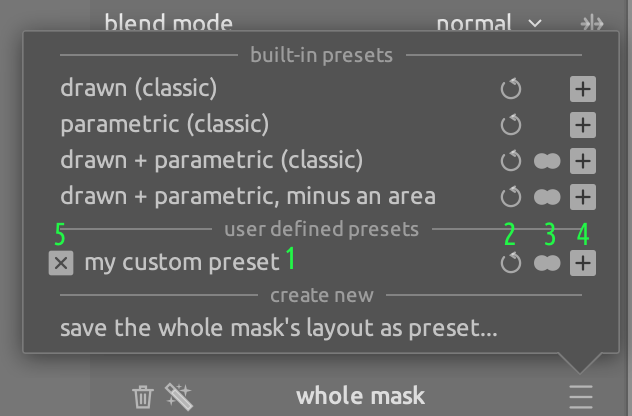
- preset name
- replace
- merge
- add as subgroup
- delete (user defined presets only)
Click the name of a preset to add it to the selected group, as a new subgroup. Nothing that the group already holds is lost. The buttons at the right of each preset offer the other ways to apply it:
- replace
- The group drops every member it holds and takes the preset’s layout, keeping its own name. darktable asks for confirmation if elements would be discarded.
- merge
- The preset’s groups are added to the selected group, next to what it already holds. The group keeps its own operator and opacity. Only offered for presets that contain groups.
- add as subgroup
- The preset is added to the selected group as a new group, next to what it already holds (the same as clicking the name).
Presets can be applied in any module that supports masks, but not to a raster mask.
#built-in presets
- drawn (classic)
- A single group that combines its shapes with screen (smooth union), so that overlapping feathered edges merge without a seam. Draw shapes or add AI objects to mask an area. This is the default layout for new masks.
- parametric (classic)
- A single group that combines its parametric elements with product (smooth intersection): only pixels selected by all channels are masked, as with the parametric masks of darktable 5.6 and earlier.
- drawn + parametric (classic)
- A drawn group and a parametric group, combined with product (smooth intersection): only the area where the two groups overlap is masked. Add channels to the parametric group to select the area, then refine it with shapes in the drawn group.
- drawn + parametric, minus an area
- A difference group holding a drawn + parametric group at the bottom. Build the mask in the drawn + parametric group, then add elements to the outer group to remove unwanted spill from it.
The mask of a module starts with the layout chosen as default layout for new masks in the mask options when it is switched on for the first time. User-defined presets can also be chosen there.
#help notes
When a group created from a built-in preset (or an element inside it) is selected, a help section of the mask panel explains the purpose of the group and how to use it. Notes with several pages have arrows to turn them. Help notes can be disabled with show preset help notes (beginners) in the mask options.
#saving and deleting presets
To save the layout of the selected group as a preset, click save this group’s layout as preset… (or save the whole mask’s layout as preset…) at the bottom of the popover and enter a name. Only the structure is saved – the groups, their names, operators and opacities – not the shapes, parametric elements or other elements inside them. (Module presets and styles are different: they store the whole mask, shapes included.)
To delete a user-defined preset, click the delete button at the left of its name.