AgX
Transform the colors and tonal range of an image to fit a display.
The primary innovation of the AgX module is an advanced color handling method that ensures a natural and film-like appearance, preventing the oversaturation artifacts common with simpler tone mapping techniques. It is derived from the display transform of the same name, used in the Blender 3D modeler by T. J. Sobotka, Eary_Chow, Sakari Kapanen and others.
Modules placed before AgX in the pipeline operate in scene-referred space. Modules after AgX work in display-referred space.
You can automatically enable AgX in new images by setting the value of preferences > processing > auto-apply pixel workflow defaults to ‘scene-referred (AgX)’.
🔗primaries
The “primaries” are the defining feature of AgX and the core of how it handles color. They determine the basic color appearance of the image before the tone mapping curve is applied. For precise definitions of the color terms used in this section, please refer to darktable’s color dimensions.
The core challenge in fitting a scene’s wide dynamic range into a display’s narrower range is managing color across the entire tonal scale. Without tone mapping, transitions would be abrupt, and lead to color distortions:

A simple per-channel curve often causes colorful objects to shift to pure, unnatural-looking primary or secondary colors as their intensity changes – an effect sometimes called the “Notorious 6”:
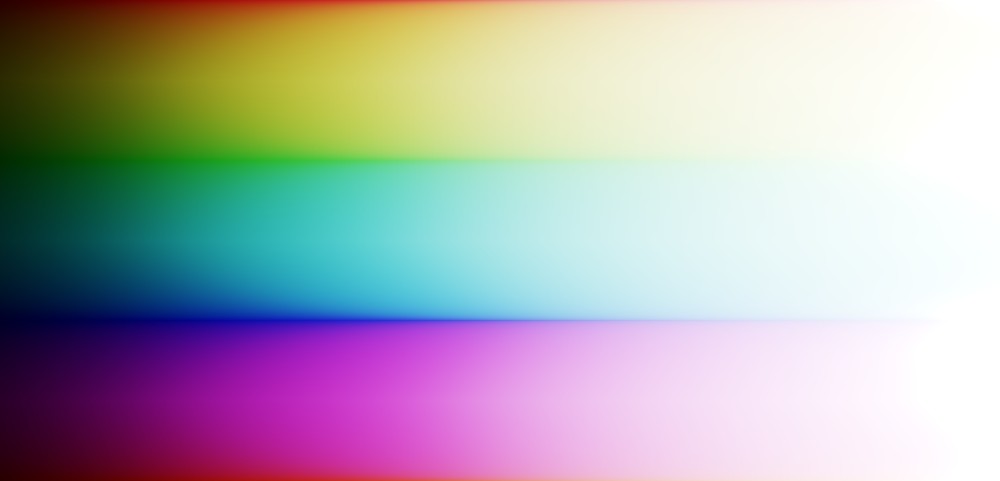
The primaries controls in AgX work to prevent this by building a custom color space for the tone curve. By adjusting the primaries before the curve is applied, AgX creates a more graceful “path to white,” allowing colors to desaturate and shift hue in a way that looks more natural and believable. This process influences the color rendering across the entire tonal range to create a cohesive final image:

🔗usage
Please take note of the following guidelines while using this module within your workflow:
- only use one display transform
- Never use AgX together with another display transform module (i.e. sigmoid, filmic rgb or base curve).
- adjust for the mid-tones first
- By default, the module preserves middle gray. Before using AgX, you should first use the exposure module to adjust the mid-tones to your liking.
A recommended workflow for using this module is provided at the end of this page.
🔗module controls
The module’s controls are divided into three categories:
- Tone mapping controls (input range and the curve)
- Post tone-mapping adjustments (“look”)
- Color-related controls (primaries)
Throughout this module’s documentation, references will be made to other tone mappers, namely filmic rgb and sigmoid. This is to support users already familiar with those modules, however, familiarity with these modules is not required to use AgX.
Due to the complex nature of this module, related controls are grouped together in collapsible sections, and the controls are distributed over two tabs.
🔗the settings tab
The settings tab holds the most commonly-used controls.
🔗input exposure range
This section provides controls similar to those of the filmic rgb module, allowing you to set the black and white points. The selected exposure range will then be projected into the [0, 1] range using a logarithmic transformation. This means that each 1 EV stop of dynamic range corresponds to an equal distance along the curve’s horizontal axis. The mid-gray point is situated proportionally on this axis between the selected extremes. After this initial projection, the data will be further processed by the curve (below).
- white relative exposure
- Set the white point. Any value above this will be clipped to 1. Use the picker to automatically set this value.
- black relative exposure
- Set the black point. Any value below this will be clipped to 0. Use the picker to automatically set this value.
- dynamic range scaling
- Apply a safety margin when using pickers to select the white and black relative exposure.
- auto tune levels
- Select the auto tune picker icon to set both the white and black relative exposures at the same time (same as clicking both pickers above).
- The read exposure (camera icon) button does not analyze the contents of the image, like the pickers do. Instead, it estimates the black and white relative exposures based on the settings in the exposure module. If there are several instances of exposure, the button will read the settings from the first enabled, unmasked instance. If all instances are masked, the first instance will be used.
- Using the button only makes sense if the input to AgX is actually influenced by the exposure module – that is, if the exposure module comes before AgX in the pipeline (which is normally the case). This allows you to take into account any in-camera exposure compensation, in-camera highlight preservation (if supported by darktable), and manual adjustments. The mechanism is similar to that used by filmic rgb, but is not applied automatically.
🔗basic curve parameters
In the following discussion, the parts of the tone curve are identified as follows:
- The pivot is the point on the curve around which contrast is adjusted (the point of highest contrast)
- The shoulder is the higher bend of the curve (the highlights)
- The toe is the lower bend of the curve (the shadows)
- The contrast is the slope of the curve (steeper curve = higher contrast)
If you do not understand these terms from the definitions, it may be helpful to show the curve while adjusting the related controls and observe the effect.
- pivot relative exposure
- Sets the input value of the pivot point (the point in the tonal range where the contrast will be highest), in EV relative to mid-gray. Since contrast is normally highest around the pivot, this slider allows you to choose which part of the input tonal range should have the most contrast. The corresponding color picker adjusts only this slider, but not pivot target output (below). You may be tempted to use it as a brightness control (moving the pivot towards black, without modifying its output value, will brighten the image, while moving it towards white will darken the image), but the pivot target output is better suited for that, as it directly influences brightness, without changing the point of highest contrast.
-
When adjusting the black/white relative exposure values, the pivot relative exposure will be maintained for as long as possible. This will cause it to move along the x-axis, as the preserved quantity is the exposure value relative to mid-gray, and its position on the x-axis depends on the endpoints of that axis (the black and white relative exposure values). If an adjustment would cause the pivot input to fall outside the exposure boundaries, it will be forced inside the available range.
- pivot target output
- Sets the target output linear value (power) for the tone selected by the pivot’s input. The value is indicated on the y-axis of the curve. Note that the scale of the y-axis is not uniform, and depends on the curve y gamma, described in the section advanced curve parameters. The corresponding color picker adjusts both pivot relative exposure (the point of highest contrast) and pivot target output, attempting to preserve the average brightness of the selected region.
For more predictable results, you are advised to use the color pickers on uniform areas, as sudden tonal transitions in the selected area will cause the average values to change drastically, leading to fluctuations in both pivot input and output.
- contrast
- Sets the slope of the curve at the pivot point. This value is scaled internally to maintain a consistent final (linear) output contrast, compensating for changes to both the dynamic range and the curve y gamma setting.
- shoulder power / toe power
- These sliders determine how fast the contrast drops as the curve approaches black or white. Higher values result in a sharper bend, maintaining contrast for longer before a more abrupt roll-off. If the overall contrast is not sufficient to reach the black and/or white point, either or both ends of the curve may become “inverted,” rendering these controls ineffective. Should this occur, a warning icon will appear next to the affected slider(s). Hovering over the warning provides a tooltip with suggested actions, and, if the show curve section is expanded (below), the affected part of the curve will be highlighted in yellow.
🔗show curve
Expand the show curve section to display a plot of the curve. This can be a useful tool to learn about curve behavior by observing the effect of related controls, or when investigating issues such as loss of detail or “curve inversion” (see the toe power / shoulder power control above). The plot is not interactive – it simply illustrates the effect of the sliders.
The x-axis shows the selected input exposure range, measured in EV, with all values relative to mid-gray (indicated by the 0 EV mark).
The y-axis shows the linear output value, with 18% representing mid-gray. The scaling of the y-axis is not linear – horizontal grid lines help visualize this non-linearity. The degree of non-linearity is governed by a gamma value (default: 2.2). More information on the gamma is provided in the description of the advanced curve parameters.
The curve has 5 important points:
- The black and white points are at the left and right edges of the graph, respectively; their final linear output values can be controlled by the target black and target white sliders (see advanced curve parameters).
- The pivot is the point around which the curve is built, indicated by a dot. By default, it maps mid-gray to mid-gray. You may move this point to match your main subject using the provided picker.
- The toe and shoulder starting points define where the curve transitions from a linear section to the compressed toe (shadows) and shoulder (highlights). By default, these are set to the pivot point.
🔗advanced curve parameters
- shoulder start
- Defines the point where the linear portion of the curve ends and the shoulder begins. Keeping the value at 0% allows the smooth transition to start at the pivot. Higher values push the transition point up towards the chosen target white. This may result in hard clipping, which can lead to a loss of detail in the highlights.
- target white
- The upper bound that the curve converges to. This can be used to limit the maximum output luminance.
- toe start
- Defines the point where the linear portion of the curve ends and the toe begins. Keeping the value at 0% allows the smooth transition to start at the pivot. Higher values push the transition point down towards the chosen target black. This may result in hard clipping, which can lead to a loss of detail in the shadows.
- target black
- The lower bound that the curve converges to. This can be used to create a faded analog look, similar to the lift control in the look section or the global offset in color balance rgb.
- keep the pivot on the diagonal
- Automatically adjusts curve y gamma in an attempt to ensure the curve remains S-shaped, as long as the contrast setting is high enough. It works much like auto adjust hardness in filmic rgb. While the checkbox is ticked, curve y gamma cannot be adjusted manually, and is hidden.
- curve y gamma
- Shifts the representation of the pivot along the y-axis without changing its output luminance. This is an internal parameter of the algorithm and does not need to match your display’s gamma. Its purpose is mainly to enable you to keep the S-shape of the curve, thereby ensuring that the shoulder power and toe power controls remain effective. Manual adjustments are disabled while keep the pivot on the diagonal is enabled.
🔗look
The “look” controls define how the image is processed after the tone mapping operation. This means that they are display-referred operations, and can result in clipping, so use them carefully.
- slope
- Multiplies the output values by this factor. Black is not affected (since it has a value of 0). Values above 1 brighten the image and increase contrast, whereas those below 1 darken the image and reduce contrast.
- lift
- Shifts values up or down. Only blacks are fully affected, with the effect gradually reduced for brighter tones. Whites are not affected if slope is at its default value of 1. Negative values crush shadows, whereas positive values can produce a faded look.
- brightness
- Applies a power function (gamma adjustment) to the image. The black and white points are not affected. Values above 1 will raise the mid-tones, opening up shadows, whereas those below 1 will darken the mid-tones and compress shadows.
- saturation
- Controls color intensity by adjusting the image’s chroma. For a precise definition of chroma vs. saturation, please see darktable’s color dimensions. A value of zero makes the image monochrome.
- preserve hue
- The tone mapping curve, being a per-channel curve, introduces color shifts, with color tending towards the primary (red, green and blue) and secondary (yellow, cyan and magenta) colors in the highlights. At a value of 0%, these color shifts are retained. By raising this slider, the input hues (those before the tone curve) can be partially or fully restored.
- Note that the input hues themselves are affected by the “primaries manipulations” that are performed before tone mapping, and the final hues are affected by the “primaries manipulations” that are applied after tone mapping. For a detailed description of the order of the operations, see technical details below.
🔗the primaries tab
The primaries tab controls are similar to, but more extensive than, those of the collapsible primaries section in the sigmoid module:
- disable adjustments
- Turns off all manipulation of primaries. You are not advised to tick this checkbox for actual processing – it is intended more as a learning tool for quick comparisons. For a starting point without adjustments that can be fine-tuned manually, use the unmodified configuration.
- reset primaries
- Clicking this button reveals a pop-up menu to apply one of the built-in sets of primaries, without altering any of the other settings.
- base primaries
- Defines which color space is used as the basis of the AgX processing space. The attenuation and rotation controls below are applied relative to this space. For especially problematic colors, you may find that wider spaces provide better control.
🔗before tone mapping
The controls in this group affect the operations performed before the tone mapping curve is applied.
- red/green/blue attenuation
- Controls the amount of desaturation applied to the primary color. This adjusts the rate of the color’s shift towards white as its intensity increases. Lower values result in a slower shift and more pronounced hue changes, at the risk of artifacts. The saturation of all colors will be reduced, regardless of luminosity, but this can be reversed for shadows and mid-tones using the purity boost sliders in the after tone mapping section, the overall effect being a desaturation of highlights.
- red/green/blue rotation
- Rotates the hue angle of the primary color. This affects the direction of the hue shift for colors as their intensity changes. For example, rotating red can influence whether it bends towards yellow or magenta.
🔗after tone mapping
The controls in this group affect the processing performed after tone mapping. Use them as artistic controls to help you achieve the desired final look.
- reverse all
- Ticking this checkbox will hide the other controls in the group, and adjust processing settings as if the master reversal sliders, discussed below, were set to 100%, the purity boost parameters to match the values of the corresponding attenuation sliders, and the reverse rotation parameters to mirror the values set with the rotation sliders. The values of the hidden sliders will be retained, but not used for processing. Unchecking the checkbox will make them visible, and their settings effective, again.
- The checkbox is intended to simplify the user interface (users may wish to create presets with the checkbox ticked), and for quick “what-if” checks.
- set from above
- Clicking the button will copy the values of the sliders from the before tone mapping section, and set the master controls to 100%, producing the same visual effect as ticking reverse all. However, this only provides a starting point – the sliders will not be hidden, and may be adjusted to taste.
- master purity boost, master rotation reversal
- These are multipliers that affect the individual red/green/blue controls below, allowing you to globally increase or decrease their effect.
- red/green/blue purity boost
- Restores color purity after the tone curve is applied. Higher values make the image look more colorful and chroma-laden, but can introduce artifacts if pushed too far. When combined with attenuation (above), the net effect is a selective desaturation of highlights (since the purity boost does not fully recover purity in highlights, due to them being strongly desaturated by the tone mapping process).
- red/green/blue reverse rotation
- Reverses the initial primary rotation after the tone curve. This offers a final control over the rendered hues. This can be used to partly or fully reverse the hue shifts introduced by the corresponding rotation sliders, mostly in the shadows and mid-tones. Since the curve is applied per-channel, it is subject to the “Notorious 6” shifts, which mostly affect highlights.
🔗presets
The module provides built-in presets, based on Blender, and on the smooth preset of the sigmoid module. When adjusting primaries starting from those presets, you will need to take the following into account:
- In Blender, the rotation of primaries is not reversed, and purity is restored using values different from those used for attenuation. Therefore, the corresponding blender-like and scene-referred default presets of AgX come with master purity boost = 100%, master rotation reversal = 0%. This means that, although the per-channel rotation reversal sliders are set up for complete reversal, they have no effect. You can turn them on gradually by raising the master rotation reversal control, and, once that is no longer set to 0%, adjust the individual channel sliders according to taste.
- In the sigmoid module’s smooth preset, rotations are always completely reversed, but purity is not boosted at all by default. Therefore, the corresponding AgX presets, also called smooth, set master purity boost = 0%, master rotation reversal = 100%. The per-channel purity boost sliders are set to completely reverse the attenuation, but are effectively disabled by the master slider. The per-channel rotation reversal sliders mirror the settings of the reversal slider, and are fully enabled by the master control.
You are, of course, free to create your own presets with your favorite combination of master and per-channel controls (for example, having the master reversal controls at 100% and the per-channel controls set to your preferred values).
🔗selective tuning for mid-tones and highlights
It is important to note that using the primaries controls, the properties of the S-curve (lower contrast in highlights), and per-channel application of the curve together make it possible to apply different adjustments to mid-tones and highlights, even though this may not be evident at the first glance.
Per-channel S-curves have the property of desaturating highlights, independently of the attenuation control. This means you can reverse the attenuation (restore saturation) for mid-tones using purity boost, but not so for highlights.
Another property of per-channel S-curves is the skewing of bright colors mentioned above: the “Notorious 6”. AgX cleverly uses this effect to exaggerate hue shifts introduced using the rotation of primaries. For example, a red primary rotated a few degrees towards green (yellow) will turn ever so slightly yellow, and this can be reversed later using the red reverse rotation slider, if desired. However, for brighter tones, the “Notorious 6” shift will skew the slightly yellow-tinted red more towards yellow, allowing you to obtain orange sunsets instead of pink ones. The reverse rotation will not recover this additional skew fully. To control how much additional skew you want to allow, use the preserve hue slider in the look section.
🔗recommended workflow
The following workflow is recommended when using this module:
- Set overall exposure for the mid-tones using the exposure module. Alternatively, use contrast and toe / shoulder power to fill the output tonal range.
- Choose a preset as a starting point. If darktable is set to apply a scene-referred workflow by default (see preferences > processing > auto-apply pixel workflow defaults), the module will apply reasonable defaults automatically. In other cases (for example, when using the legacy display-referred workflow or if the workflow preference is set to “none”), manually select the preset blender-like|base or smooth|base for best results. The punchy presets are more contrasty and colorful.
- Use the auto tune levels picker to set the desired exposure range.
- Set the pivot on the subject using the picker next to pivot relative exposure (optional) – this ensures that contrast is maximized around the selected area.
- Move the pivot target output slider to adjust the brightness of the pivot point (optional).
- Set the contrast.
- Adjust toe and shoulder power to set contrast in shadows and highlights, respectively (optional).
- Finally, if desired, you may add “drama” by adjusting the controls in the look section – add brightness, set overall saturation, and adjust colors with preserve hue.
Please also note the following:
- The provided presets (with the exception of unmodified base primaries) provide carefully tuned primaries. When starting out, it is best to rely on those settings. Adjusting them, based on individual taste and/or special lighting conditions (e.g. LED lights, stage lighting) is part of a more advanced workflow.
- Unless high quality processing is enabled, the effect of adjusting the primaries cannot be judged properly, especially with highly saturated colors and narrow-spectrum light sources like LEDs.
- Don’t forget that the AgX module is just another tone mapper. As flexible as it is, it is not intended to solve all image processing tasks related to color and contrast, many of which will be better resolved by using other modules.
🔗additional options
The following additional options are “hidden” by default but can be toggled by manually editing your darktablerc file while darktable is closed.
🔗“3 tab” mode
For people with small screens, where vertical screen-space is at a premium, an optional “3 tab” mode is provided in order to reduce the need to scroll the module. This mode moves the plot of the curve and advanced curve parameters from the settings tab into a dedicated curve tab, and duplicates some other controls from the settings tab for convenience.
You can enable this mode by setting plugins/darkroom/agx/enable_curve_tab=TRUE in darktablerc. When set to FALSE, all curve controls appear on the settings tab as normal.
🔗disabling curve warnings
The warnings documented within the basic curve parameters section can be disabled by setting plugins/darkroom/agx/enable_curve_warnings=FALSE in darktablerc.
🔗always expand the “look” section
By default, the look controls are placed inside a collapsible section. If you want to keep them visible at all times, you can set plugins/darkroom/agx/look_always_visible=TRUE in darktablerc.
🔗technical details
The following is a detailed description of the steps taken when processing with the AgX module. This section is provided as a reference for interested readers, but is not required to use the module.
- Linear, scene-referred data arrives in the pipe’s working space, defined in the input color profile module (e.g. Rec 2020)
- If needed, data is converted to the selected “base” space
- Colors that are out-of-gamut for the “base” space (RGB triplets that have any negative component in that space) are “slid” into gamut (in-gamut colors are not modified, though it is possible that a previously out-of-gamut color “lands on top of” an in-gamut color). The sigmoid module performs a similar operation, but the method is different.
- An input matrix is calculated and applied, based on the RGB attenuation and primaries rotation values. This desaturates the colors (mixing channels into each-other) and rotates the primaries. This is the same as with sigmoid.
- The HSV representation is calculated from the inset+rotated RGB. The hue (H) will be used later to restore the hue according to the look / preserve hue slider.
- For each component (RGB channel), the same processing steps are executed independently (but, since the desaturation (primaries attenuation) mixes channels into each-other, this means that with respect to the original color, the processing is not independent at all):
- Log encoding is applied: for input x, log2(x) is calculated (x would be the value of the red, green or blue channel)
- The log value is scaled and shifted according to the selected exposure parameters, so the selected black point becomes 0, the white point 1, and the value corresponding to mid-gray (18%) ends up on the x-axis of the curve in a ratio black relative exposure : white relative exposure (by default, 10 : 6.5, or at about 0.61)
- The curve is applied. This produces an output that is considered to be encoded according to the gamma. This can be considered as data ready to be displayed on a monitor using the specified gamma value (the gamma is only used for processing, and does not have to match the gamma of the display used for editing, or that of the output color space).
- The look is applied in pure display-referred mode, like legacy editing of gamma-encoded images, and similar to editing sRGB JPGs in traditional editors. Except for saturation, these are also per-channel operations:
- first the slope and the lift
- then the brightness
- finally the saturation
- For each channel, the gamma-encoded data is linearized by applying
linear = gamma_encoded ^ gamma(so it is scene-referred 0..1, but the encoding is linear, like always in darktable’s pipeline; mid-gray is at 0.18) - The HSV representation of the result is calculated. The resulting hue (from the H component) and the original hue are mixed together according to the preserve hue setting to produce the final hue. This does not guarantee complete preservation of color, as the “original” hue was already recorded after the input matrix, and after this mix, the output matrix (see the next step) modifies colors again.
- The output matrix is applied to each channel, which:
- performs the rotation reversal (this is a difference with sigmoid: the latter always completely reverses the rotation, in AgX, reversal is up to the user)
- applies the purity boost (just like sigmoid)
- converts the result back into the pipe working space.
For a deep dive into the theory and development behind AgX, the primary resource is the discussion thread on Blender Artists: Feedback & Development - Filmic - Baby Step to a v2.